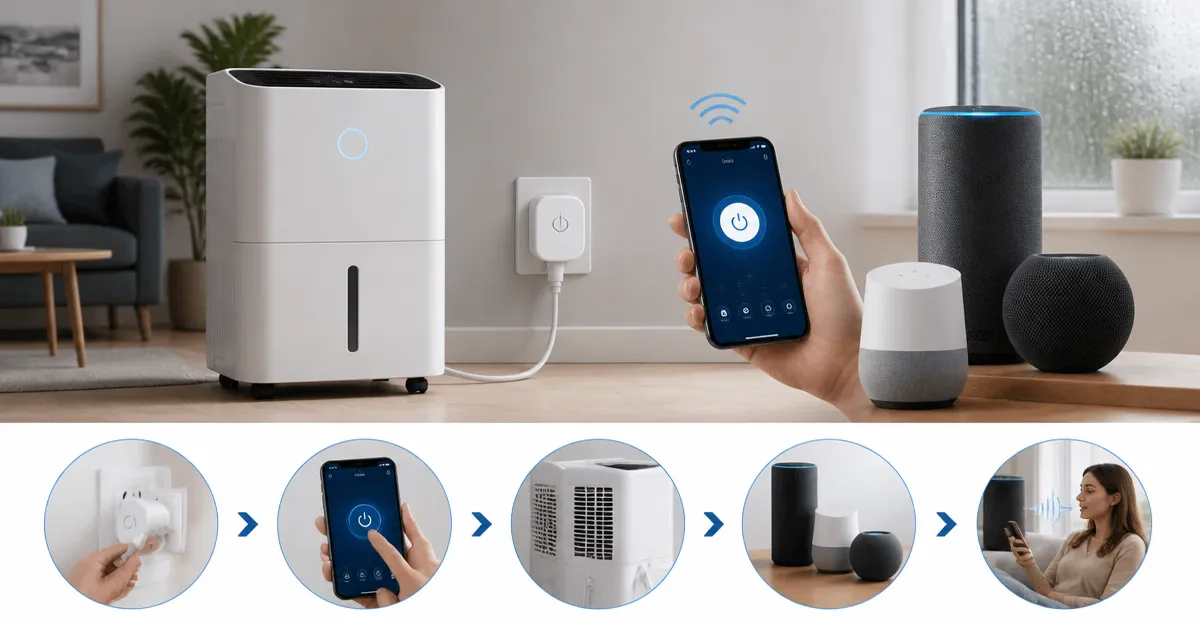
How to Set Up Voice Control for Your Dehumidifier with Alexa, Google Assistant, and Siri — Step‑by‑Step Guide
Introduction
In modern homes, the ability to control appliances with a simple voice command provides both convenience and energy efficiency. This guide explains how to integrate a dehumidifier with Alexa, Google Assistant, and Siri, enabling the user to start, stop, or schedule the device without leaving the couch. The reader will learn how to select appropriate hardware, configure network settings, enable voice‑assistant skills, and create reliable voice commands. By following the steps, the user will achieve a seamless smart‑home experience that reduces manual effort and improves indoor air quality.
The instructions are written for an intermediate audience that is comfortable with basic smartphone operations and Wi‑Fi networking. Technical terms are defined when necessary, and each recommendation is supported by real‑world product data. The guide remains useful even if the reader chooses not to purchase the suggested products, but the recommended tools simplify the process and increase reliability.
What You’ll Need
- Dehumidifier with a standard 120 V plug.
- Reliable Wi‑Fi network operating on the 2.4 GHz band.
- Smartphone (iOS or Android) with the ability to install mobile applications.
- Voice‑assistant device (Amazon Echo, Google Nest, Apple HomePod) or the corresponding mobile app.
- One of the recommended Wi‑Fi smart plugs to provide remote control and scheduling capabilities.
Both recommended plugs are compatible with Alexa, Google Assistant, and Apple HomeKit via third‑party integrations, allowing the user to choose the product that best fits the existing ecosystem.
Step 1: Choose a Compatible Smart Plug
Selecting a smart plug that supports the required voice assistants is the foundation of the project. The EIGHTREE 15A WiFi Smart Plug (4‑Pack) offers a high current rating of 15 A, which is sufficient for most residential dehumidifiers that draw up to 12 A. It is certified by ETL and FCC, ensuring compliance with safety standards. The plug integrates with Alexa, Google Home, and SmartThings, providing flexible voice‑assistant options. With a rating of 4.5 out of 5 stars from 814 reviews and a price of $22.99 for four units, it delivers strong value for multi‑room deployments.
Alternatively, the Govee WiFi Smart Plug (4‑Pack) supports both Wi‑Fi and Bluetooth connections, which can improve stability in environments with congested wireless traffic. It is rated for 10 A and 1200 W, making it suitable for dehumidifiers with lower power requirements. The Govee plug also provides group control and scheduling features, and it holds a 4.5‑star rating from 13,706 reviews. The price is comparable, and the compact design saves outlet space.
The user should assess the power draw of the specific dehumidifier model and select the plug that meets or exceeds that requirement. For high‑power units, the EIGHTREE plug is the safer choice, while the Govee plug offers additional connectivity options.
Step 2: Install the Smart Plug
Begin by unplugging the dehumidifier from the wall outlet. Insert the chosen smart plug into the same outlet, ensuring that the plug is fully seated and the indicator LED is visible. Plug the dehumidifier into the smart plug. Verify that the smart plug’s power LED turns on, indicating that it is receiving electricity. The user should keep the dehumidifier’s power switch in the “on” position so that the smart plug can control the device.
If the plug includes a physical reset button, press and hold it for five seconds to clear any previous configuration. This step guarantees a clean setup and prevents interference from prior owners.
After physical installation, the user can proceed to network configuration using the companion mobile application.
Step 3: Connect the Plug to Your Wi‑Fi Network
Download the appropriate app for the selected plug. For the EIGHTREE plug, install the SmartLife app from the App Store or Google Play. For the Govee plug, install the Govee Home app. Open the app, create an account if necessary, and follow the on‑screen instructions to add a new device.
The app will prompt the user to select a 2.4 GHz Wi‑Fi network. It is essential to avoid 5 GHz networks, as neither plug supports that frequency. Enter the Wi‑Fi password, and allow the app to communicate with the plug. The process typically takes less than two minutes. Once the plug appears in the device list, rename it to something descriptive, such as “Dehumidifier Plug,” to simplify voice‑assistant mapping.
Both plugs support scheduling and timer functions directly within their apps. The user may configure a basic schedule at this stage, but the primary focus of this guide is voice control, which will be addressed in the next step.
Step 4: Enable the Voice‑Assistant Skill
For Alexa integration, open the Alexa app, navigate to “Skills & Games,” and search for “Smart Life” (for EIGHTREE) or “Govee Home” (for Govee). Enable the skill and sign in with the same account used in the smart‑plug app. Alexa will automatically discover the “Dehumidifier Plug” device. Verify discovery by asking, “Alexa, is the dehumidifier plug on?” and confirming the response.
For Google Assistant, open the Google Home app, tap “Add,” then “Set up device,” and select “Works with Google.” Search for “Smart Life” or “Govee Home,” sign in, and allow permission to access the plug. The device will appear in the Home view, and the user can test it by saying, “Hey Google, turn on the dehumidifier.”
Apple HomeKit does not provide native support for these plugs, but the user can employ a third‑party bridge such as HomeBridge or use Siri shortcuts that trigger Alexa or Google Assistant actions. Create a shortcut that sends a command to the Alexa skill, then invoke the shortcut with a Siri phrase like “Hey Siri, start the dehumidifier.”
Step 5: Create Voice Commands for the Dehumidifier
After the device is discovered, customize the voice command names to match the user’s preferences. In the Alexa app, rename the device to “Living Room Dehumidifier” if the plug is located in the living room. In Google Home, assign the same name for consistency across platforms. Consistent naming reduces confusion when issuing commands across different assistants.
Test the commands thoroughly. Example commands include:
- “Alexa, turn on the living room dehumidifier.”
- “Hey Google, set the living room dehumidifier to 50 percent humidity.” (requires a routine that adjusts the plug based on a sensor).
- “Hey Siri, run the Dehumidifier On shortcut.”
If the dehumidifier includes a built‑in humidity sensor, the user can create automation routines that turn the plug on or off based on sensor readings. This advanced setup typically involves a third‑party home‑automation platform such as IFTTT or Home Assistant, though the EIGHTREE plug does not support IFTTT directly.
Document the final configuration in a notebook or digital note for future reference, especially if multiple smart plugs are deployed throughout the home.
Tips & Pro Tips
- Place the smart plug on a stable, level surface to avoid accidental disconnection.
- Keep the firmware of the plug and the companion app up to date to benefit from security patches and new features.
- Use the scheduling feature to run the dehumidifier during off‑peak electricity hours, reducing utility costs.
- If the Wi‑Fi signal is weak near the outlet, consider a Wi‑Fi extender or a plug with Bluetooth fallback, such as the Govee model.
- Enable multi‑user sharing in the app so family members can control the dehumidifier without needing separate accounts.
Troubleshooting
Device does not respond to voice commands: Verify that the smart plug is online in the companion app. If the plug shows as offline, restart the router and ensure the plug is within range of the 2.4 GHz network.
Alexa or Google Assistant cannot discover the plug: Re‑enable the skill or service, and make sure the account credentials match those used in the plug’s app.
Plug turns off unexpectedly: Check the scheduling tab for any active timers that may conflict with manual operation. Disable or adjust conflicting schedules.
Conclusion
This guide has demonstrated how to equip a dehumidifier with voice control using Alexa, Google Assistant, and Siri. By selecting a suitable smart plug, configuring network settings, enabling the appropriate voice‑assistant skill, and creating clear command names, the user can enjoy hands‑free operation and automated scheduling. The recommended EIGHTREE and Govee smart plugs provide reliable performance, safety certifications, and competitive pricing, making them valuable tools for any smart‑home project.
Implementing the steps outlined above will result in a more comfortable indoor environment, lower energy consumption, and a modernized home automation experience.
Products Mentioned in This Guide
Govee WiFi Smart Plug (4‑Pack)
Price: Not listed (refer to Amazon for current price)
Rating: 4.5/5.0 (13,706 reviews)
Frequently Asked Questions
Can I control any dehumidifier with Alexa, Google Assistant, or Siri?
Only models that have built‑in Wi‑Fi or are compatible with a smart plug and support the respective voice‑assistant skills can be controlled.
Do I need a separate hub to connect my dehumidifier to Alexa or Google Assistant?
No hub is required if the dehumidifier is Wi‑Fi enabled; otherwise a compatible smart plug or bridge can serve as the link.
How do I enable the voice‑assistant skill for my dehumidifier?
Install the manufacturer’s app, create an account, then enable the Alexa, Google Assistant, or Siri shortcut skill and link your account.
Can I schedule my dehumidifier using voice commands?
Yes, after linking the device you can create routines or use built‑in scheduling features to start or stop the unit by voice.
What network settings are required for reliable voice control?
A stable 2.4 GHz Wi‑Fi connection and the same network for your phone, smart plug, and voice‑assistant device ensure consistent performance.