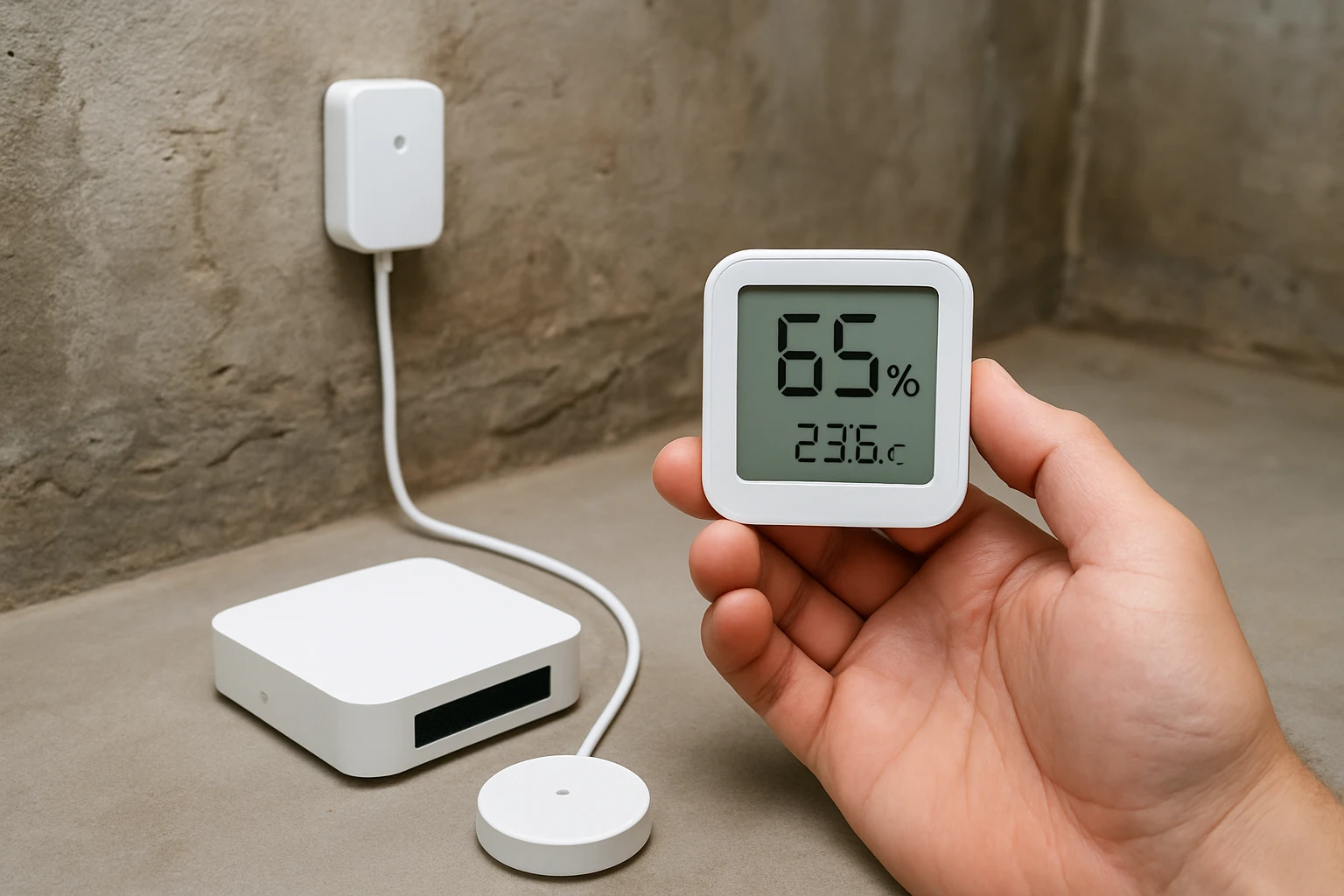
How to Map Basement Humidity with Multiple Sensors: A Step‑by‑Step Guide
Understanding the moisture distribution in a basement is essential for preventing mold, protecting stored items, and maintaining structural integrity. This guide will teach the reader how to create a detailed humidity map using two reliable sensor solutions, collect real‑time data, and interpret the results to take corrective action. The approach combines a hub‑based system for continuous monitoring with a portable Bluetooth thermometer for spot checks, providing both breadth and depth of coverage. By following the steps, one will gain confidence in managing basement humidity and protecting the home investment.
What You'll Need
- Two or more Tapo Smart Temp & Humidity Monitor units (price $27.99, rating 4.6/5 from 409 reviews)
- One ThermoPro Bluetooth Thermometer (price $12.99, rating 4.3/5 from 782 reviews)
- A Tapo Hub H100 (sold separately) to act as the central gateway for the Tapo monitors
- AA or AAA batteries (the Tapo monitors include two AAA batteries with up to two years of life)
- Double‑sided adhesive tape or mounting brackets for sensor placement
- A smartphone or tablet with the Tapo app and ThermoPro app installed
- A notebook or spreadsheet program for optional manual data logging
Step 1: Assess the Basement Layout and Identify Measurement Zones
The first action is to walk through the entire basement and note areas that are prone to moisture, such as corners, low‑lying sections, and locations near exterior walls. One should sketch a simple floor plan on paper or using a digital tool, marking potential sensor locations with numbers. It is advisable to select at least four zones: a dry reference point, a typical living‑area spot, a corner near the foundation, and a location close to any water‑entry points. By planning the zones, the subsequent sensor deployment will produce a balanced data set that reflects the true humidity gradient.
Step 2: Set Up a Central Hub for Continuous Monitoring
For long‑term data collection, the Tapo Smart Temp & Humidity Monitor requires a Tapo Hub H100, which acts as the wireless bridge between the sensors and the home network. The hub operates on a secure 2.4 GHz Wi‑Fi connection and uses the Sub‑1G low‑power protocol, extending battery life and coverage compared with standard Wi‑Fi sensors. To install, plug the hub into a power outlet near the central part of the basement, connect it to the router via the Tapo app, and verify that the hub appears online. This step is crucial because the hub stores historical data in the cloud, allowing the user to export two years of readings for later analysis.
Step 3: Position the Tapo Sensors Strategically
Each Tapo Smart Temp & Humidity Monitor features a 2.7" E‑Ink display that remains readable under bright light and consumes minimal power. Place the first unit in the dry reference zone, attaching it to the wall with the supplied 3M adhesive or a small mounting bracket. Position the second unit in the most moisture‑prone corner, ensuring the sensor faces away from direct water spray to avoid false spikes. If more than two zones are required, additional monitors can be added following the same method. The Swiss‑made sensor chip provides accuracy of ±0.54°F and ±3% RH, which is sufficient for identifying subtle variations across the space.
Step 4: Deploy the ThermoPro Bluetooth Thermometer for Spot Checks
While the Tapo system offers continuous coverage, the ThermoPro Bluetooth Thermometer excels at quick, portable measurements in hard‑to‑reach locations. Its 260 ft Bluetooth range allows the user to stand near the sensor and obtain real‑time readings on a smartphone without moving a permanent device. To use, insert the included batteries, download the ThermoPro app, and press the pairing button; the sensor will auto‑connect within seconds. Perform spot checks in areas such as the ceiling joists, behind stored items, and near any drainage pipes to validate the fixed sensor data.
Step 5: Connect Sensors to Their Apps and Configure Alerts
Open the Tapo app, add each monitor by selecting “Add Device,” and assign a descriptive name that matches the zone on the floor plan (e.g., “Basement Corner”). Set custom humidity thresholds, for example a low‑level alert at 45 % RH and a high‑level alert at 65 % RH, which are typical limits for preventing mold growth. Enable push notifications so the smartphone receives an alert the moment a reading exceeds the defined range. In the ThermoPro app, enable temperature and humidity alerts as well, and configure the comfort index to display a single “Comfort” rating for quick assessment. These alerts act as early warnings, allowing the homeowner to intervene before damage occurs.
Step 6: Collect Data Over a Representative Period
Allow the sensors to operate for at least one week to capture daily fluctuations caused by weather, HVAC cycles, and human activity. The Tapo monitors update every two seconds and store the data in the cloud, while the ThermoPro device logs readings every ten seconds and can export up to two years of data. At the end of the monitoring period, use the Tapo app to export the data as a CSV file and import it into a spreadsheet program. Plot humidity versus time for each zone, and overlay the ThermoPro spot‑check values to verify consistency. This visual map will reveal which areas remain consistently above the desired humidity range.
Step 7: Analyze the Humidity Map and Identify Problem Areas
Examine the plotted data to locate zones where humidity exceeds the high‑level threshold for extended periods. Frequently high readings near exterior walls may indicate inadequate sealing or drainage, while elevated humidity in the center of the basement could be caused by insufficient ventilation. Use the ThermoPro spot‑check results to pinpoint localized spikes, such as behind a water heater or near a sump pump. By correlating sensor data with physical observations, one can prioritize remediation efforts where they will have the greatest impact.
Step 8: Implement Moisture Control Solutions
Based on the analysis, install a dehumidifier in the most affected zone, ensuring that the unit’s capacity matches the basement’s square footage. Seal any visible cracks in foundation walls with a waterproof sealant, and verify that the sump pump is functioning correctly. Improve air circulation by adding a low‑speed exhaust fan or by opening interior doors periodically. After implementing these measures, continue monitoring with the existing sensors for another week to confirm that humidity levels have stabilized within the target range.
Tips & Pro Tips
- Place sensors at least three feet above the floor to avoid direct contact with damp concrete, which can skew readings.
- Enable the “Data Export” feature in both apps to maintain a long‑term record for future reference or for sharing with a professional inspector.
- When using the ThermoPro Bluetooth Thermometer, keep the smartphone within the 260 ft range; obstacles such as metal shelving can reduce signal strength.
- Consider calibrating the sensors after the first month by comparing readings against a known‑reference hygrometer.
- For larger basements, add additional Tapo monitors; each unit costs $27.99 and maintains the same accuracy, allowing the map to scale without significant expense.
Troubleshooting
Sensor not connecting to hub: Verify that the Tapo Hub H100 is powered and connected to the same 2.4 GHz Wi‑Fi network as the smartphone. Restart the hub and the monitor, then re‑add the device through the app.
Bluetooth range issues with ThermoPro: Remove physical obstructions between the sensor and the phone, and ensure the sensor battery is fresh. The device uses two AAA batteries that last up to two years under normal conditions.
Inconsistent readings between devices: Allow both sensors to acclimate for at least 30 minutes after placement before recording data. Temperature gradients can cause temporary discrepancies that settle after stabilization.
Conclusion
Mapping basement humidity with multiple sensors provides a clear picture of moisture distribution, enabling targeted interventions that protect the home from mold and structural damage. By following the eight steps, the reader will have installed reliable monitoring hardware, collected actionable data, and implemented effective moisture‑control strategies. Continuous monitoring with the Tapo Smart Temp & Humidity Monitor and spot‑checking with the ThermoPro Bluetooth Thermometer ensures that any future changes are detected early. One is encouraged to repeat the data‑collection cycle after any remediation to verify that humidity levels remain within safe limits.
Products Mentioned in This Guide
Frequently Asked Questions
What sensors are recommended for mapping basement humidity?
Use two or more Tapo Smart Temp & Humidity Monitors together with a ThermoPro Bluetooth Thermometer for spot checks.
How does the Tapo Hub H100 help in humidity monitoring?
The Hub H100 acts as a central gateway, allowing continuous real‑time data collection from all Tapo sensors on your network.
Can I map humidity with only Bluetooth thermometers?
Bluetooth thermometers provide spot readings but lack the networked coverage needed for a full humidity map, so they’re best used alongside hub‑based sensors.
How many sensor units are needed for an accurate basement map?
At least two Tapo monitors placed in different zones give a basic map; adding more sensors improves resolution and identifies micro‑climates.
What should I do if the humidity map shows consistently high levels?
Increase ventilation or use a dehumidifier in the affected areas, and re‑measure to confirm the humidity drops to 40‑60%.